
Console-aware scanning
Each library follows the extensions for its selected platform and can scan one folder or its full directory tree.
JellyStreamz Games for Jellyfin
Scan game folders once on Jellyfin, manage the artwork in one place, and browse the same polished library from supported JellyStreamz devices.
Built for the library you already own
The plugin reads folders available to your Jellyfin server and sends only the game library experience to JellyStreamz clients. ROM contents are not uploaded to JellyStreamz, filesystem paths stay administrator-only, and stock Jellyfin clients stay uncluttered.
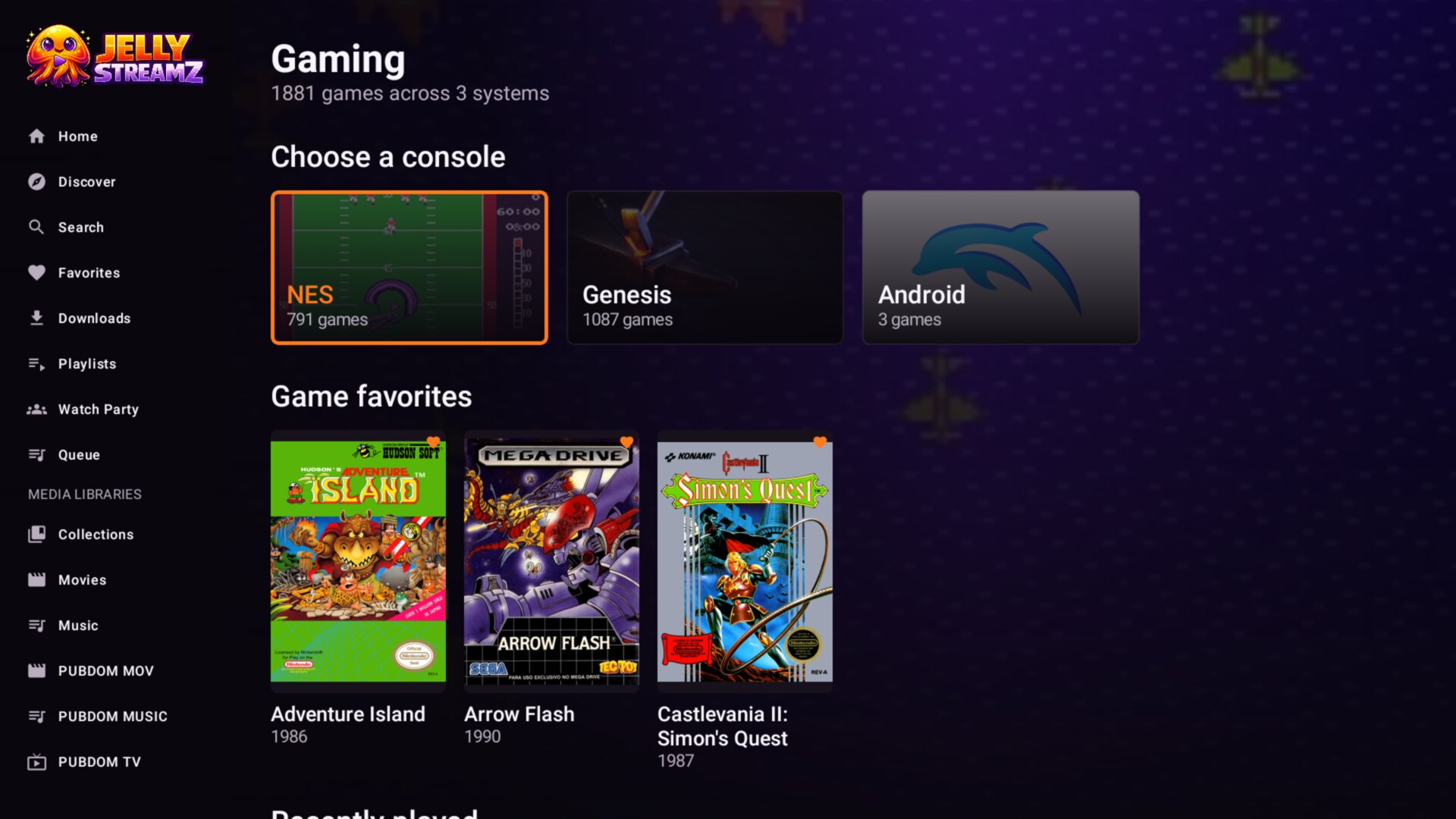
What the plugin handles
Jellyfin stores and serves the library. Your Android device still runs RetroArch or the standalone emulator you choose.
Each library follows the extensions for its selected platform and can scan one folder or its full directory tree.
Fast title matching is followed by CRC32, MD5, SHA-1, and RetroAchievements-compatible checks, including playable files inside ZIP and 7z archives.
Cache only the art types you want, choose primary images, replace a bad match, or upload your own files from the Jellyfin dashboard.
Choose who may open each library, while favorites, hidden titles, recent games, and play counts follow the active Jellyfin profile.
Every game, image, and ROM request requires a valid Jellyfin session and library permission. Server paths remain administrator-only.
The client downloads a launch copy, checks the selected core or emulator, and returns to the same game detail screen after play.
Connect an account on Android to match supported ROM hashes and see unlocked, hardcore, and remaining trophies on each game page.
Complete setup guide
You only do the server setup once. Each step below shows the screen and the exact choices that matter.
In Jellyfin, open Dashboard, then Plugins. Choose Manage Repositories and select New Repository.
https://jellystreamz.com/plugins/manifest.jsonSave the repository. JellyStreamz will now appear as a plugin catalog source.
Return to the plugin catalog, choose Available, and open JellyStreamz Games. Install the current compatible release.

Open JellyStreamz Games from the dashboard sidebar, choose Libraries, then select Add library.
Keep one console per library. Separate folders make matching, cores, BIOS checks, and artwork more reliable.
Start the scan from the plugin library page. Then sign into the same server in JellyStreamz and open Gaming Settings. The server plugin check should show Installed and active.
Setup help
Refresh the catalog and confirm the manifest URL uses HTTPS with no spaces. If it still does not appear, restart Jellyfin and open Available plugins again.
Open the plugin Libraries tab, confirm the scan finished, and make sure the active Jellyfin user is allowed to access that library. In the Android app, run the server plugin check again.
Open Games & artwork in the plugin dashboard. You can replace the match, re-download art, choose a different primary image, or upload your own cover and backdrop.
The Jellyfin plugin serves the file; emulation happens on Android. Confirm RetroArch or the selected standalone emulator is installed, the core supports the file extension, and any required BIOS is configured on that device.
Required on the playback device
Install RetroArch or a supported standalone emulator on Android, then configure the core and any legally obtained BIOS files it requires. JellyStreamz can help check BIOS names and select emulators, but the plugin does not distribute emulators, cores, firmware, or games.